Forgot your Wi-Fi password? If your laptop has connected to the network before, Windows can show it to you in under a minute.
Table of contents
Your laptop joins the home Wi-Fi on its own, then a guest asks for the password and nobody remembers it. Windows has it saved, and there are two ways to see it.
You need to be signed in with an administrator account for both.
Method 1: From the Control Panel
This works for the network you are connected to right now.
- Press Win + R, type
ncpa.cpland press Enter. The Network Connections window opens. - Right-click your Wi-Fi adapter and choose Status.
- Click Wireless Properties, then open the Security tab.
- Tick Show characters. The password appears in the Network security key box.
Method 2: With Command Prompt
This one also works for networks you used in the past, like your office or a friend's place.
Open Command Prompt and list every network your PC remembers:
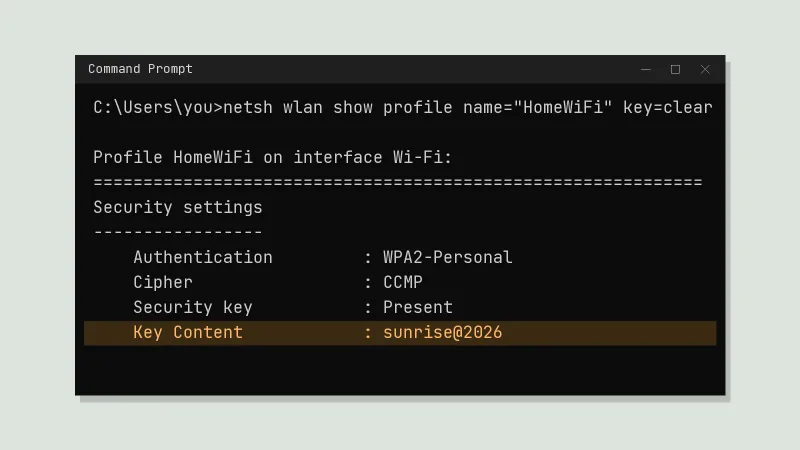
netsh wlan show profilesThen ask for the password of one of them. Replace HomeWiFi with the exact name from the list:
netsh wlan show profile name="HomeWiFi" key=clearScroll down to Security settings. The line Key Content is the password.
Which one should you use?
| Control Panel | Command Prompt | |
|---|---|---|
| Current network | Yes | Yes |
| Networks used before | No | Yes |
| Typing commands needed | No | Yes |
While you are at it
If the password turns out to be 12345678 or your phone number, change it from your router's settings page. Use WPA2 or WPA3 security, and change the router's admin password as well, not only the Wi-Fi password.