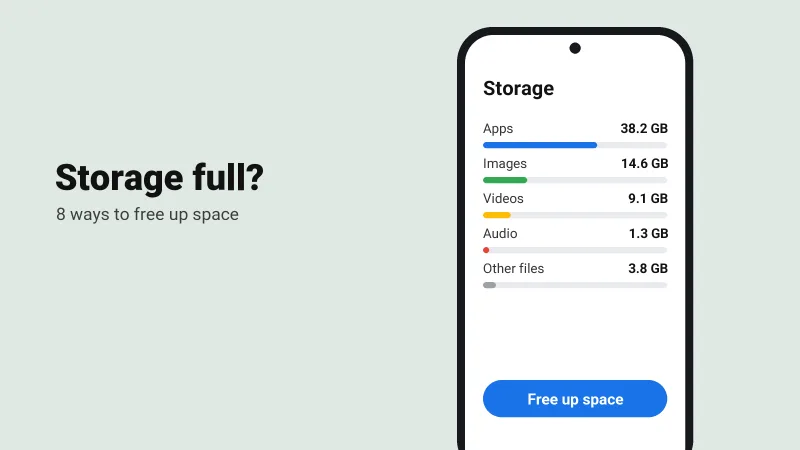
Getting the "storage full" warning? These eight steps can free several gigabytes on any Android phone without deleting the photos you care about.
Table of contents
On a 64 GB or 128 GB phone, the "storage full" warning shows up sooner or later. Before you start deleting photos, go through these steps. Most people get back several gigabytes in ten minutes.
Menu names change a little between Samsung, Xiaomi, Vivo, Oppo and others, but the options are the same.
1. Find out what is taking space
Go to Settings → Storage. On Samsung phones it is under Settings → Battery and device care → Storage. You will see how much goes to apps, images, videos and other files, which tells you where to start.
2. Clean up WhatsApp
WhatsApp is usually the biggest culprit because of forwarded videos and images.
- Open WhatsApp and go to Settings → Storage and data → Manage storage.
- Check Larger than 5 MB and Forwarded many times.
- Delete what you don't need. Busy group chats are worth a look too.
To stop it filling up again, turn off Media auto-download on mobile data in the same menu.
3. Use Files by Google
Install Files by Google from the Play Store and open the Clean tab. It finds junk files, duplicates, large files and old screenshots, and deletes them in a few taps.
4. Remove photos that are already backed up
If Google Photos backup is on, open Google Photos, tap your profile picture and choose Free up space. It removes only the photos and videos that are already saved in your Google account.
Warning
Wait until backup has finished before you do this, and remember that your Google account storage has a limit too.
5. Clear app cache
YouTube, Instagram and Chrome keep temporary files called cache. Open Settings → Apps, pick an app, tap Storage and then Clear cache. Avoid Clear data unless you are fine with logging in and setting up the app again.
6. Uninstall apps you never open
In the Play Store, tap your profile picture, then Manage apps & device → Manage, and sort by size. Remove apps you haven't used in months. Recent Android versions can also archive an app: the app goes away, but your data stays for when you install it again.
7. Empty the Downloads folder
Old PDFs, APK files and videos tend to stay forever. Open the Files app, go to Downloads and clear out what you no longer need.
8. Move files to an SD card or the cloud
If your phone has a memory card slot, move photos and videos there. Old files can also go to Google Drive or your laptop.
Try to keep 10 to 15 percent of your storage free. A phone that is almost full gets slow, and app updates start failing.