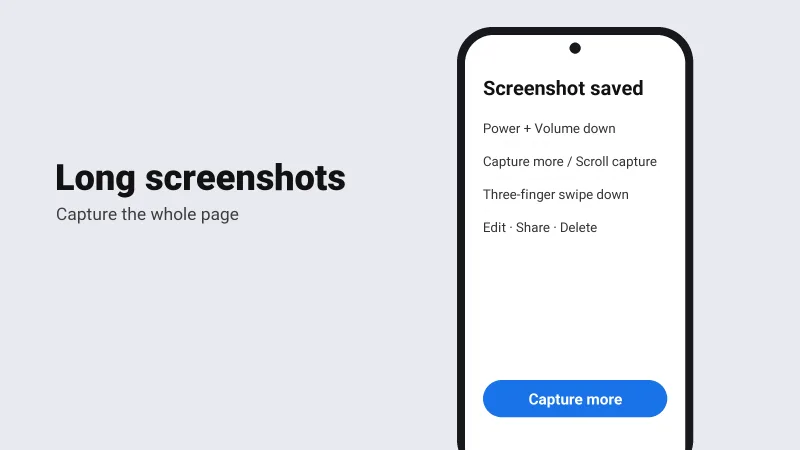
Capture a whole chat, web page or bill in one long image. Steps for Samsung, Xiaomi, OnePlus, Vivo, Pixel and Chrome.
Table of contents
A normal screenshot only captures what fits on the screen. A scrolling screenshot, also called a long screenshot, keeps going as the page scrolls. It is handy for long chats, bills, recipes and articles.
Normal screenshot first
On nearly every Android phone, press Power + Volume down together. The screen flashes and a small preview appears.
Many phones also take a screenshot when you swipe down with three fingers. If that doesn't work on yours, look under Settings → Gestures or a similar menu, since the name varies by brand.
Scrolling screenshot
- Open the page or chat you want to capture.
- Take a normal screenshot.
- In the toolbar under the preview, tap the scroll option. Its name depends on the phone:
- Capture more on Google Pixel and other phones with stock Android 12 or newer
- Scroll capture (a down arrow icon) on Samsung Galaxy phones
- Scroll on Xiaomi, Redmi and POCO phones
- Scrolling screenshot or Long screenshot on OnePlus, Oppo, Realme and Vivo phones
- Keep tapping, or drag the bottom of the selection, until everything you need is included.
- Tap Save.
If you don't see the scroll option, the screen probably can't scroll. Scroll down a little and try again.
Long screenshot of a web page in Chrome
Open the page in Chrome, tap the three dots → Share and pick Long screenshot. Drag to select the part you want, then save or share it.
Where to find them
Screenshots go to the Screenshots album in your Gallery or in Google Photos. In a file manager they are usually in Pictures/Screenshots or DCIM/Screenshots.
Some apps, mostly banking apps and private browser tabs, block screenshots on purpose. There is no setting to change that, and it is there to protect you.