All USB-C cables look the same, but speed and charging power vary a lot. What the labels mean and how to buy the right cable.
Table of contents
Almost every new phone and laptop now uses USB-C. New phones sold in the European Union have needed it since 28 December 2024, and India has also decided on USB-C as the common charging port. One plug for everything sounds simple, but USB-C only describes the shape of the connector. Two cables that look identical can behave very differently.
Data speeds
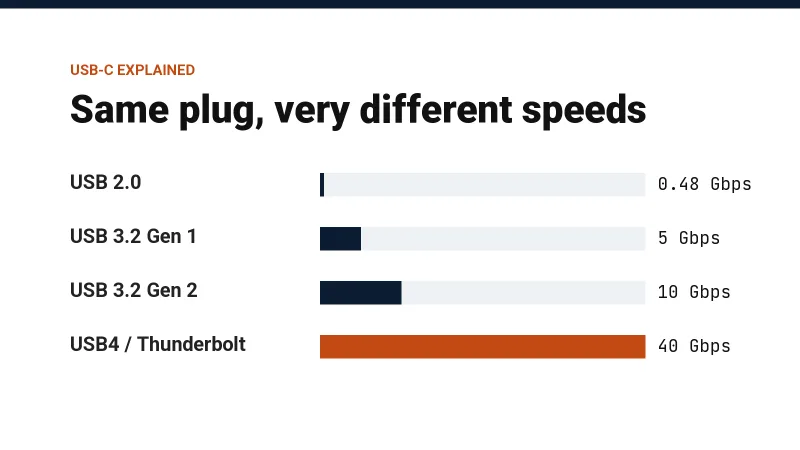
| Standard | Top speed | Good for |
|---|---|---|
| USB 2.0 | 480 Mbps | Charging, small file transfers |
| USB 3.2 Gen 1 | 5 Gbps | External hard drives |
| USB 3.2 Gen 2 | 10 Gbps | Portable SSDs |
| USB 3.2 Gen 2x2 | 20 Gbps | Fast portable SSDs |
| USB4, Thunderbolt 3 and 4 | 40 Gbps | Docks, monitors, external graphics |
The cable that came in your phone box is often USB 2.0. It charges fine, but copying a big folder of videos over it takes ages.
Charging power
- A normal USB-C cable carries up to 60 W (3 A). That covers phones, tablets and many thin laptops.
- A 5 A cable carries up to 100 W, and newer 240 W cables support the latest USB Power Delivery standard for powerful laptops.
Cables rated above 3 A have a small chip inside called an e-marker. Cheap unbranded "100 W" cables sometimes skip it, so buy these from a brand you trust.
Why your phone still charges slowly
Fast charging needs the phone, the charger and the cable to agree. Many phones use USB Power Delivery (PD). Some brands use their own fast-charging systems that only reach full speed with their own charger and cable. With any other charger, the phone drops to a slower speed.
Buying tips
- Check what your device supports, both data speed and charging watts.
- Look for the speed and wattage on the box, like "10 Gbps" or "100 W".
- Prefer USB-IF certified cables or well-known brands.
- For a monitor or a dock, get a USB4 or Thunderbolt cable.
A small trick: put a coloured sticker or a bit of tape on your fast cables so you can tell them apart from the slow ones in the drawer.